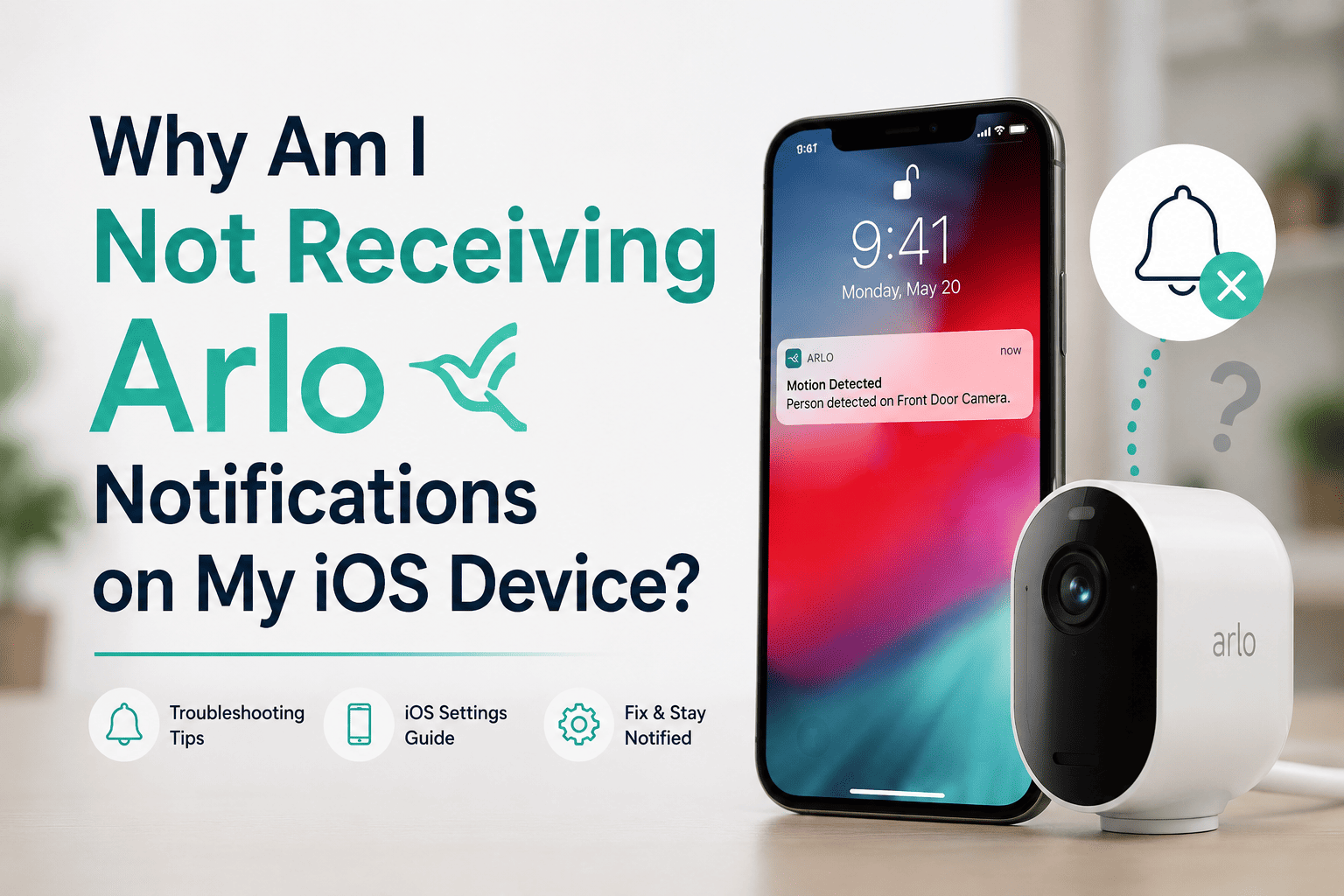
Missing security alerts from the Arlo camera can make you feel frustrated and terrified, especially when you completely rely on it and the issue is happening over and over again.
If you are wondering, Why am I not receiving Arlo notifications on my iOS device?', then we suggest you read this blog till the end, as you will get to know about common reasons why the Arlo notification is not working, ways to improve this issue, and more.
Before proceeding to solve the issue, it is crucial to know about it first. The following can be some reason that your Arlo notifications are not working as they should be working:
Mentioned below are some of the effective ways by which the Arlo notifications can work again smoothly:
1. Check iPhone Notifications Settings
Sometimes your iPhone can block notifications from the Arlo app without you knowing. Go to “Settings”, tap on “Notifications”, then select the Arlo app and enable notifications if they are disabled.
2. Arlo App Notification Setting
If the notifications are turned on in your iPhone, sometimes they can be turned off in the app. Open the Arlo app, go to “Settings”, select “Notifications”, and enable push notifications for your camera.
3. Check the Internet Connection
Users often don’t realise this, but Arlo cameras require a stable internet connection to work smoothly. Ensure that your camera is online, your iPhone has access to the internet, and your Wi-Fi is working properly.
4. Update the Arlo App
Sometimes using an outdated Arlo app can cause trouble with notification issues. Go to “App Store” and install any update that may be available for the Arlo app. The updated version often fixes bugs and improves the performance of your cameras.
5. Sign Out And Back Into Your Account
Sometimes a simple refresh in your account can resolve the syncing problems. Log out of the Arlo app, restart your iPhone and Wi-Fi, and then sign back in, as this can restore the connection between the app and Arlo servers.
6. Reinstall the Arlo App
If nothing works, then consider reinstalling the Arlo app as your last hope. Delete the Arlo app and restart your device reinstall it from app store again, and sign in agai, as this can fix notifications glitches and more.
If you are unable to receive the notifications on the Arlo app, then there is no need to panic, as this issue is often related to notification permission, focus mode or Do Not Disturb setting, internet issues or more.
By checking these areas, you can restore alerts and ensure that your security system keeps you informed. However, if the issue still continues, it is advised to contact the professional as soon as possible.
If Arlo notifications are not showing up on your iPhone, it can happen that the notification permissions are turned off, focus mode is turned off, or some incorrect app settings are present.
Yes, many users don’t realise this, but using focus mode or Do Not Disturb mode can block alerts from Arlo and can silence notifications on your device.
Yes, reinstalling the Arlo app can fix notification issues and resolve bugs, other syncing problems, corrupted settings, and more that might prevent alerts.